
Distinguish MT5, EA and EX5
This public guide shows the general technical process. The personal EX5 file, licence activation, complete allowlist and customer-specific success checks are supplied only after purchase with the full installation guide.
MetaTrader 5 is the trading platform. An Expert Advisor, or EA, is a program that runs inside that platform. Its compiled program file uses the EX5 extension.
An EX5 is not launched by double-clicking it like an ordinary Windows application. It is copied into the correct MT5 data folder and then attached to a chart from the Navigator.
1. Open the correct data folder from MT5
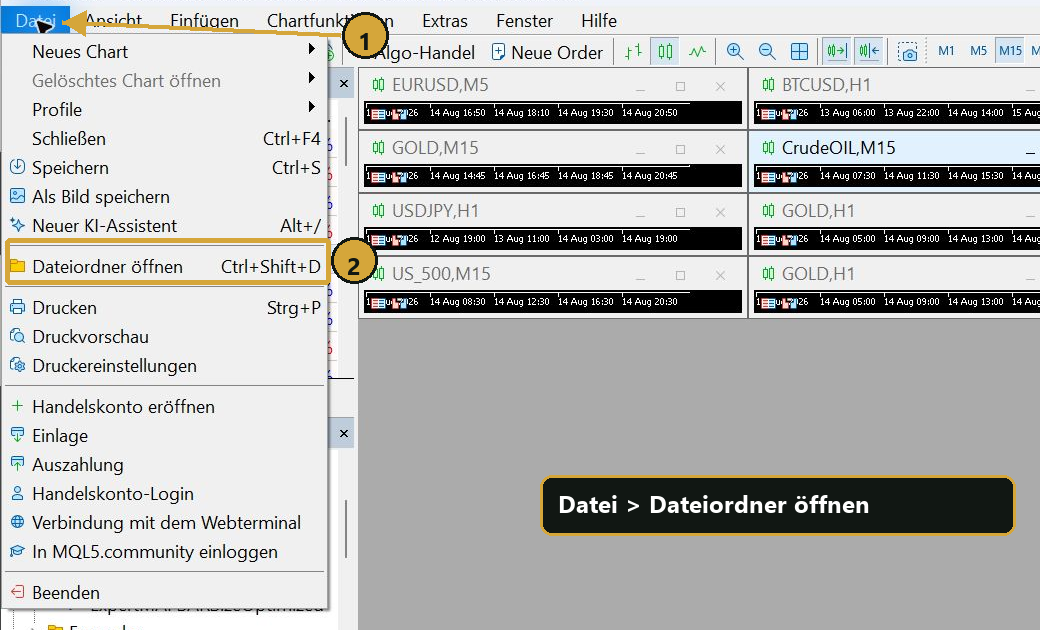
In MetaTrader 5, open File and select Open Data Folder. This is more reliable than searching manually in Windows because separate MT5 installations can use different data folders.
2. Copy the EX5 to MQL5/Experts
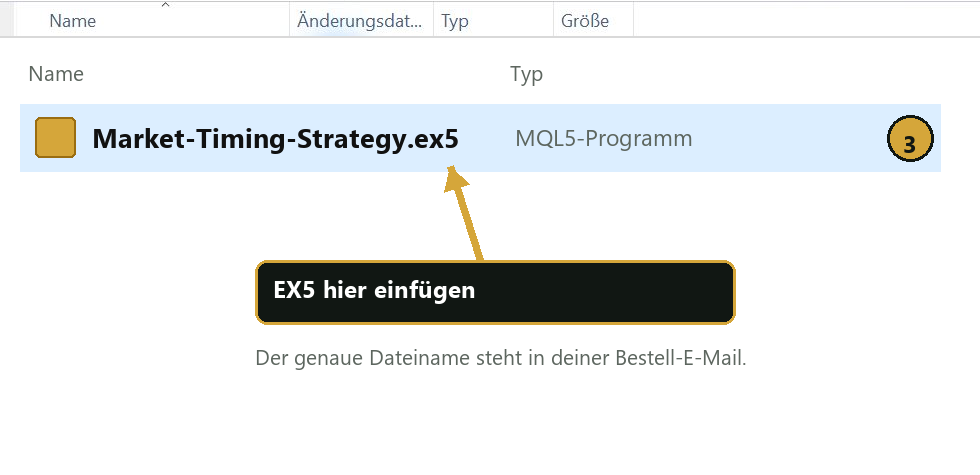
In the data folder, open MQL5 and then Experts. Copy the supplied EX5 file into that folder. Restart MT5 or refresh Experts in the Navigator.
Do not put the licence key into a file name or share it publicly.
3. Allow the required WebRequest addresses
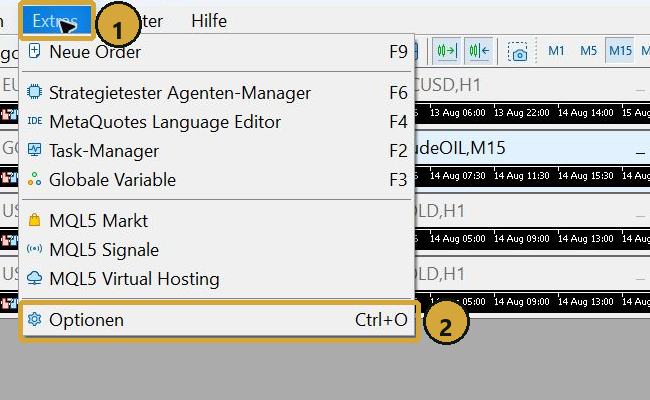
Open Tools, Options and then the Expert Advisors tab. This is where MT5 can allow access to documented external addresses.
The entries required by Market Timing Strategy and the completeness check are provided only in the installation guide supplied after purchase.
4. Attach the EA to a free chart
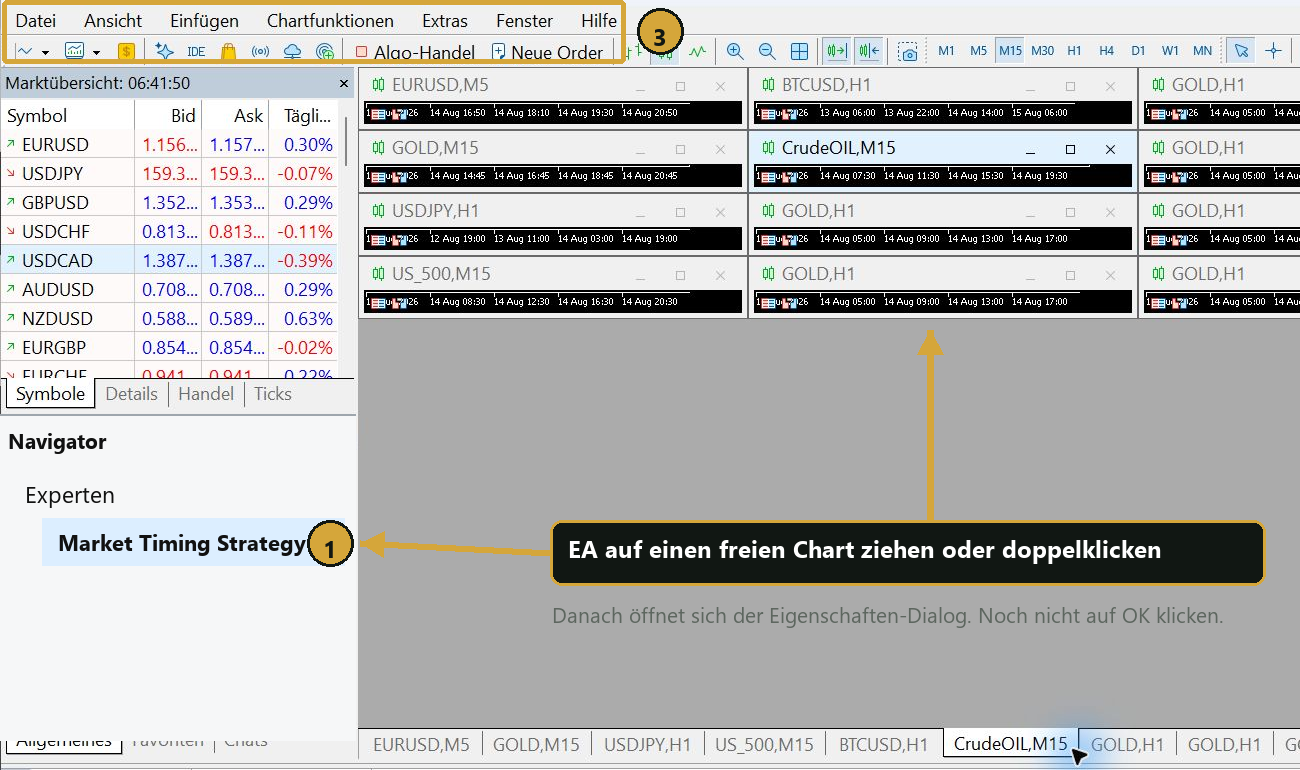
Open a normal chart and drag the Expert Advisor from the Navigator onto it, or double-click its name. In the properties dialogue, review the general permissions and only the intended technical inputs.
Customers do not need to configure internal trading rules. Change only values specifically identified in the supplied guide.
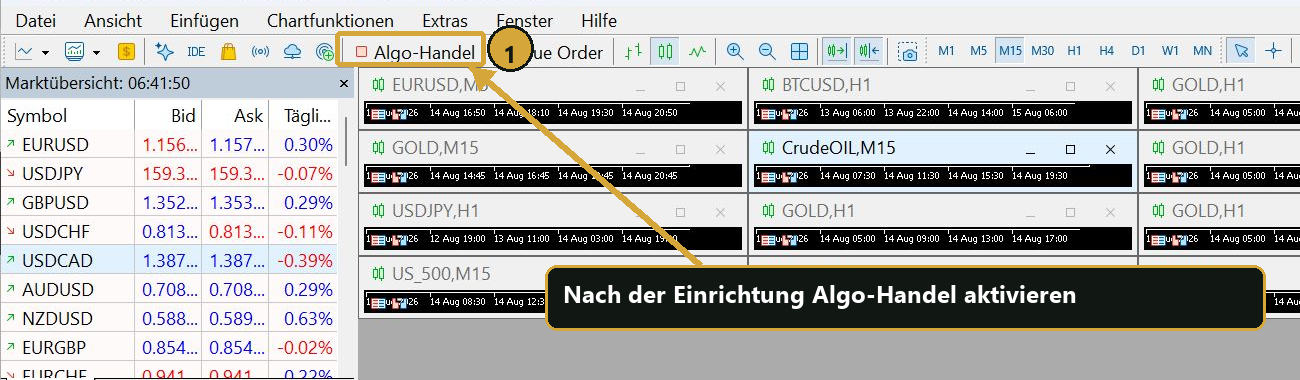
5. Verify Algo Trading and operation
Enable Algo Trading in MT5 and allow the EA to trade. Then inspect the Experts and Journal tabs for a successful licence message and technical errors.
MT5 and the broker connection must remain active. If MT5 runs on the customer's own PC, that PC must stay on. If MT5 runs on a separately rented VPS connected to the broker, the customer's own PC can remain off. A green control alone does not prove that symbol discovery, WebRequest and licence validation succeeded.
- No error in the Journal
- Active licence and correct expiry date
- Required market symbols found
- MT5 and the broker connection remain reachable
- Verify on a demo account first
Common errors
If the EA does not appear in the Navigator, the file is often in the wrong data folder or MT5 has not refreshed. A licence or calendar error usually points to an incomplete WebRequest list or a blocked connection.
Other brokers can use different symbols, sessions and contract data. A technical pre-check clarifies these points but does not replace a demo test.